The physical key on the side of a modern Samsung Galaxy handset does not just turn the screen on and off. Ever since Samsung moved shutdown controls into the quick panel and merged the old Bixby button into the primary side key on devices like the Galaxy S20, that hardware trigger has functioned as a customizable shortcut.
Out of the box, pressing the key twice launches the camera, while holding it down summons an artificial intelligence assistant. Yet buried inside One UI's menus are controls that let owners repurpose those clicks for system utilities, custom automation routines, and alternative AI platforms.
Accessing the controls requires opening the phone's main Settings app, selecting Advanced features, and tapping the Side button entry.
Customizing the double-press shortcut
The double-press shortcut offers the broadest range of choices. Anyone who frequently triggers the camera by mistake inside a pocket can switch off double-press functionality entirely from this menu.
Leaving the toggle enabled allows users to swap the default camera action for a different application. Core system tools such as the flashlight, voice recorder, and digital wallet can all be pinned directly to a double click. For select utilities, tapping the gear icon beside the tool in the settings panel allows deeper customization of what the application executes when opened.
Owners can also assign the double press to launch any standard app installed on the device. For deeper customization, the shortcut integrates with Samsung's Modes and Routines tool. Double-pressing the button can instantly activate a profile like Do Not Disturb or fire off multi-step automated routines built inside the app.
Switching to third-party AI assistants
Long-press customization remains slightly more focused. Holding down the side button defaults to calling up a voice assistant, usually Samsung's own Bixby or Google Gemini. Bixby generally handles device-level settings and quick system changes better, while Gemini focuses on generative content and broader information queries.
While One UI does not include a direct toggle to restore standard hardware power-down functionality to that long press, it does allow users to swap out which artificial intelligence responds. Installing a supported third-party assistant app makes it selectable inside the side button settings.
Services including OpenAI's ChatGPT, Anthropic's Claude, and Perplexity are supported as default assistant options. Once the relevant app is installed on the Galaxy handset, navigating back to the side button settings lets users switch the long-press shortcut away from Bixby or Gemini, tying the hardware trigger directly to their preferred AI service.
MDFiled by The Mobile Desk
Phones from leak to launch to price cut: what was announced, what it costs where, and when it goes on sale. Indian launches and prices included, not appended.
More from this desk →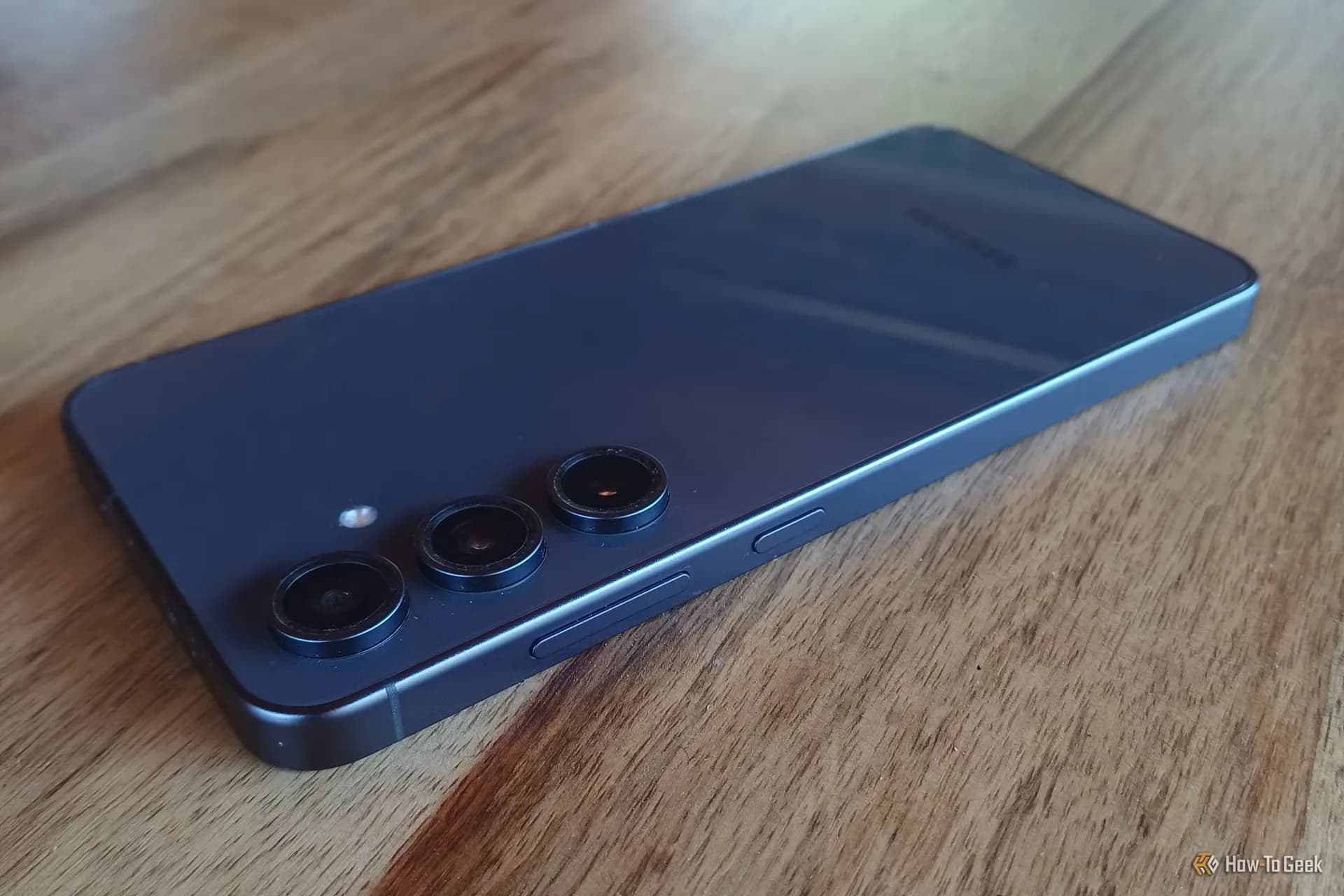
Be the first to comment
Join the argument. No password, just your email or a passkey.