A fresh installation of Windows 11 turns on plenty of protections out of the box, but Microsoft still leaves several of its most useful laptop safeguards disabled. That gap matters far more on a machine that rides in a backpack through coffee shops and airport terminals than on a desktop parked at home. Portability introduces physical theft risks alongside remote exploits.
Turning these options on takes a couple of minutes in the Windows Settings app, and none of them require paying for third-party security suites.
Locking down folders against ransomware
The first switch worth flipping is Controlled Folder Access. Standard Windows Security scans for known threats, but Controlled Folder Access acts as a strict gatekeeper against rogue processes trying to alter your personal files. If an unrecognised ransomware strain lands on your storage drive through a tainted download or phishing link, the tool blocks it from altering or encrypting files stored in protected directories.
By default, the utility covers common locations like Documents, Pictures, Music, and Videos, though you can add any custom directories you need to guard. It also shields critical boot sectors from boot-level attacks that attempt to lock you out of the operating system entirely. You can switch it on by navigating to Settings > Privacy & security > Windows Security > Virus & threat protection, and selecting Manage ransomware protection.
Walking away without leaving your screen open
If you step away from your desk in a shared space, screen timeouts often take several minutes to kick in. Dynamic Lock plugs that gap by relying on your smartphone.
Once your phone is paired to the PC over Bluetooth, Windows tracks the connection's Received Signal Strength Indicator. When you step away and the signal drops beneath a specific threshold, Windows waits roughly 30 to 60 seconds before locking the screen automatically. Anyone near your desk still has that half-minute grace period to access the machine, but it provides a safety net if you forget the Windows-L shortcut. The toggle lives under Settings > Account > Sign-in options.
Disk encryption and Tamper Protection
Full disk encryption is standard on most new machines, but some users switch off BitLocker out of concern over storage performance penalties. Modern hardware handles that encryption overhead easily. Keeping Device Encryption active ensures that even if a thief extracts the SSD from the chassis, the raw data remains unreadable without your recovery key. You can confirm the feature is active under Settings > Privacy & security > Device encryption.
Finally, none of these controls hold up if malicious software quietly turns them off behind your back. That is where Tamper Protection comes in. The feature blocks apps and background scripts from modifying your core security configurations, ensuring only verified administrative users can alter defensive tools. To verify it is running, open Settings > Privacy & security > Windows Security > Virus & threat protection, select Manage settings under Virus & threat protection settings, and toggle the switch on.
CDFiled by The Computing Desk
Laptops, desktops, processors, graphics cards and the operating systems that run on them.
More from this desk →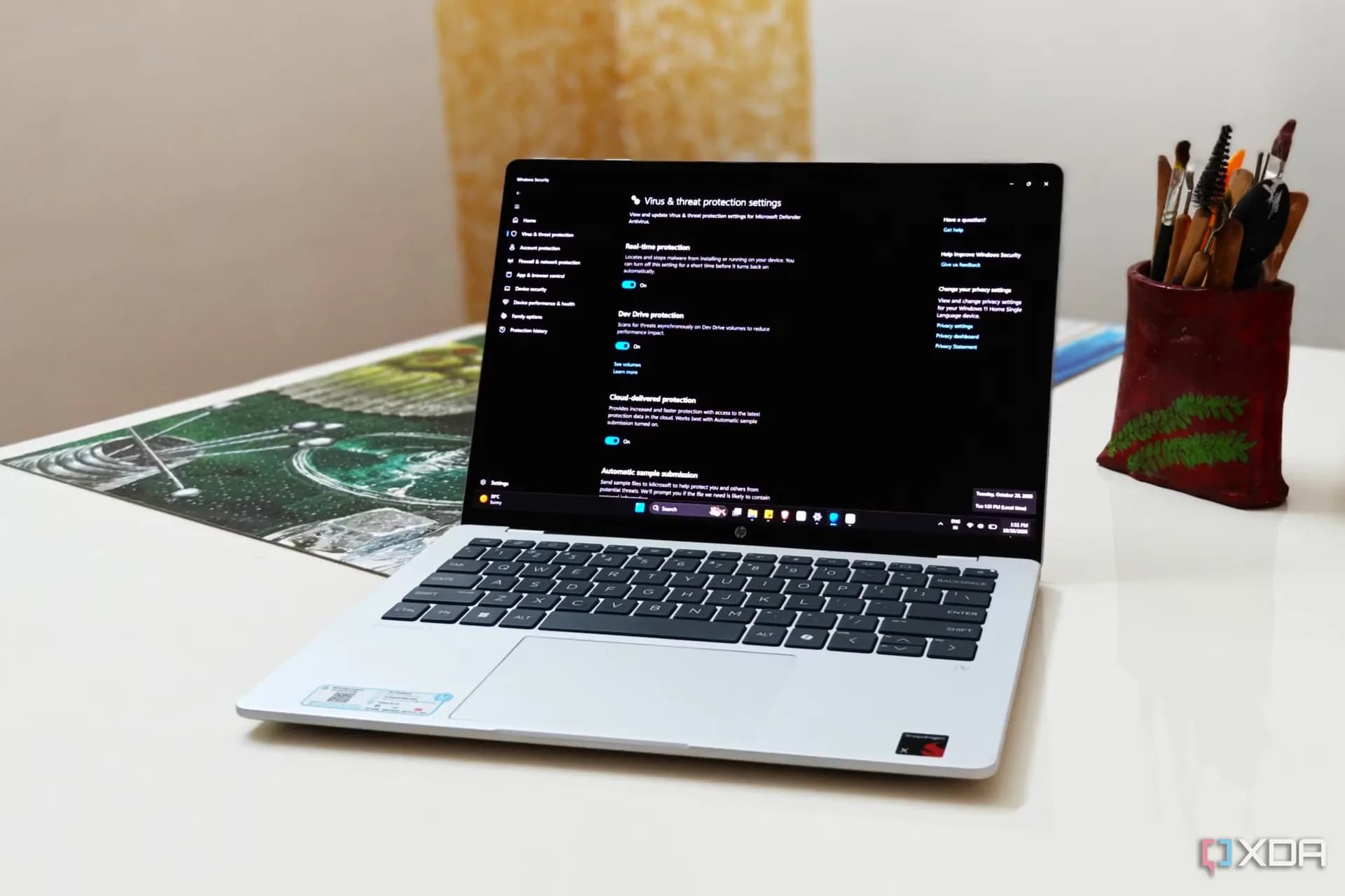

Be the first to comment
Join the argument. No password, just your email or a passkey.