Real-time updates do not need to pull you into an app every two minutes. Apple built Live Activities precisely to avoid that friction, placing persistent alerts on the lock screen, inside CarPlay, and across the Dynamic Island hardware cutout introduced on the iPhone 14 Pro and trimmed down on the iPhone 18 Pro lineup.
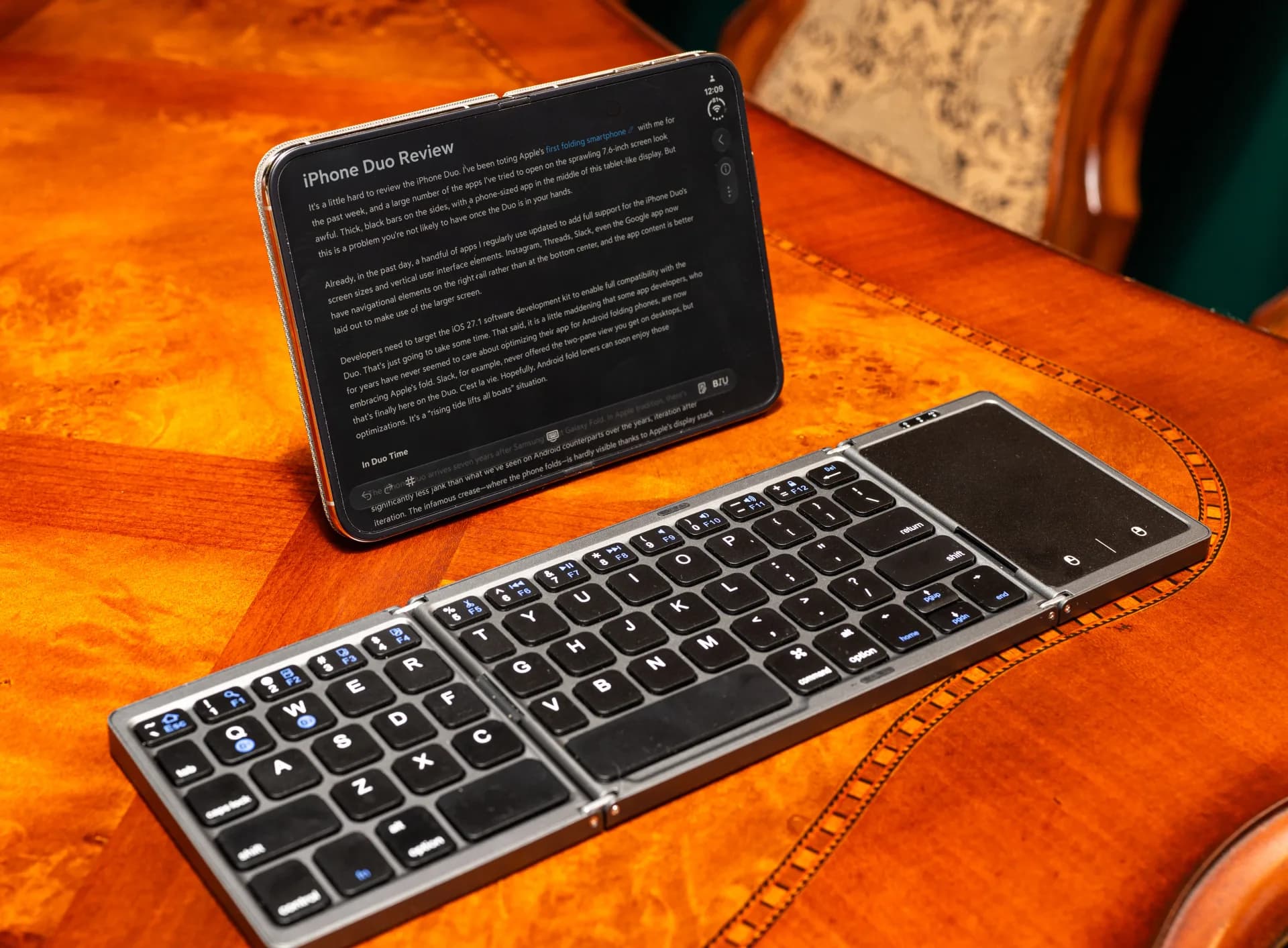
While devices like the budget e-series and iPhone Duo stick to different hardware arrangements, phones equipped with the pill cutout use that surrounding display area for continuous context. Timers, turn-by-turn navigation, media playback, and live sports scores sit directly at the top of your screen. Third-party software, including food delivery and flight tracking platforms, plugs straight into the same interface.
Most of the time, the feature runs quietly in the background without manual setup. When an app refuses to populate dynamic alerts, specific permissions are usually responsible.
Fixing iPhone Lock Screen and Island Alerts
If dynamic cards fail to surface while you are using your handset, head into Settings, tap Apps, and choose the specific title that is misbehaving. Inside that menu, toggle the Live Activities option back on. Standard notifications operate on a separate track, but turning regular app notifications on can also help if the service remains stubborn about pushing real-time information.
For updates when the handset sits locked on a table, iOS keeps a separate security gate. Open Settings, navigate to Face ID & Passcode, and enter your passcode. Scroll to the section marked Allow Access When Locked, then confirm that Live Activities has permission to run. Without that toggle active, delivery progress and boarding passes will vanish the moment the display goes dark.
Managing Alerts Inside CarPlay
Behind the wheel, the same notification engine ports over to vehicle screens to limit driving distractions. Live Activities appear natively on the split-screen CarPlay Dashboard layout, positioned to the left of the standard application grid. If you keep a navigation map or media player open in full-screen mode, the system drops the alerts as banners along the bottom edge instead.
When alerts do not show up on your vehicle console, open the Settings app directly inside CarPlay. Scroll down to verify the Live Activities switch is active. You also need to confirm that Suggestions in CarPlay, labeled as Suggestions in Dashboard on certain setups, is turned on. A running Driving Focus mode can also suppress incoming alerts until it is turned off.
Drivers wanting extra control can also position dedicated widgets in the leftmost dashboard panel, letting drivers adjust app functions without launching separate programs before hitting the road.
MDFiled by The Mobile Desk
Phones from leak to launch to price cut: what was announced, what it costs where, and when it goes on sale. Indian launches and prices included, not appended.
More from this desk →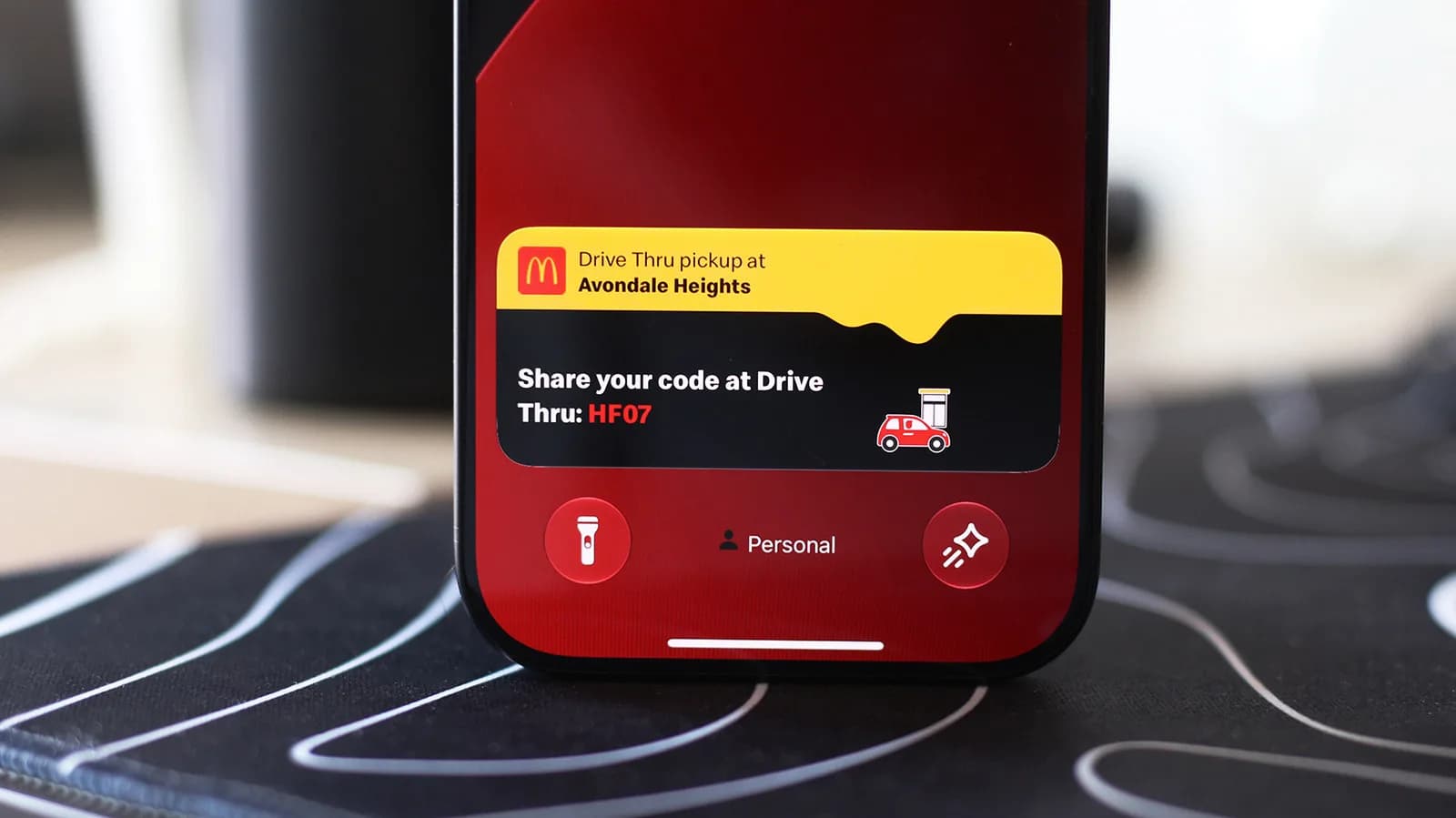
Be the first to comment
Join the argument. No password, just your email or a passkey.