Windows 11 users can now bypass the Settings app entirely — using a hidden, decades-old folder interface that Microsoft never officially promoted but has quietly supported since Windows 7. It’s called “God Mode”, and it’s not a hack, a third-party tool, or a registry edit. It’s a native Windows feature activated by renaming a desktop folder with a specific string of characters, and it works on every version from Vista onward, including Windows 11 2026 updates.
No install. No reboot. Just right-click, rename, and go. The folder icon changes to match Control Panel’s, and double-clicking opens a single, searchable index of over 200 system controls.
From power button behavior and printer management to USB selective suspend and PCIe link power settings. XDA Developers confirms it’s fully functional on current Windows 11 builds, and notes that all changes made through it apply instantly and persist normally. Deleting the folder leaves zero trace. No system files are altered.
It’s just a shortcut to the OS’s internal All Tasks list, identified by a CLSID first introduced in Windows Vista Build 6000 (2007). Power users report using it daily: one tester pins it to Start and relies on it before CPU and GPU benchmark runs to adjust processor state limits and PCIe power management, settings buried across three separate Settings pages and two legacy Control Panel sections.
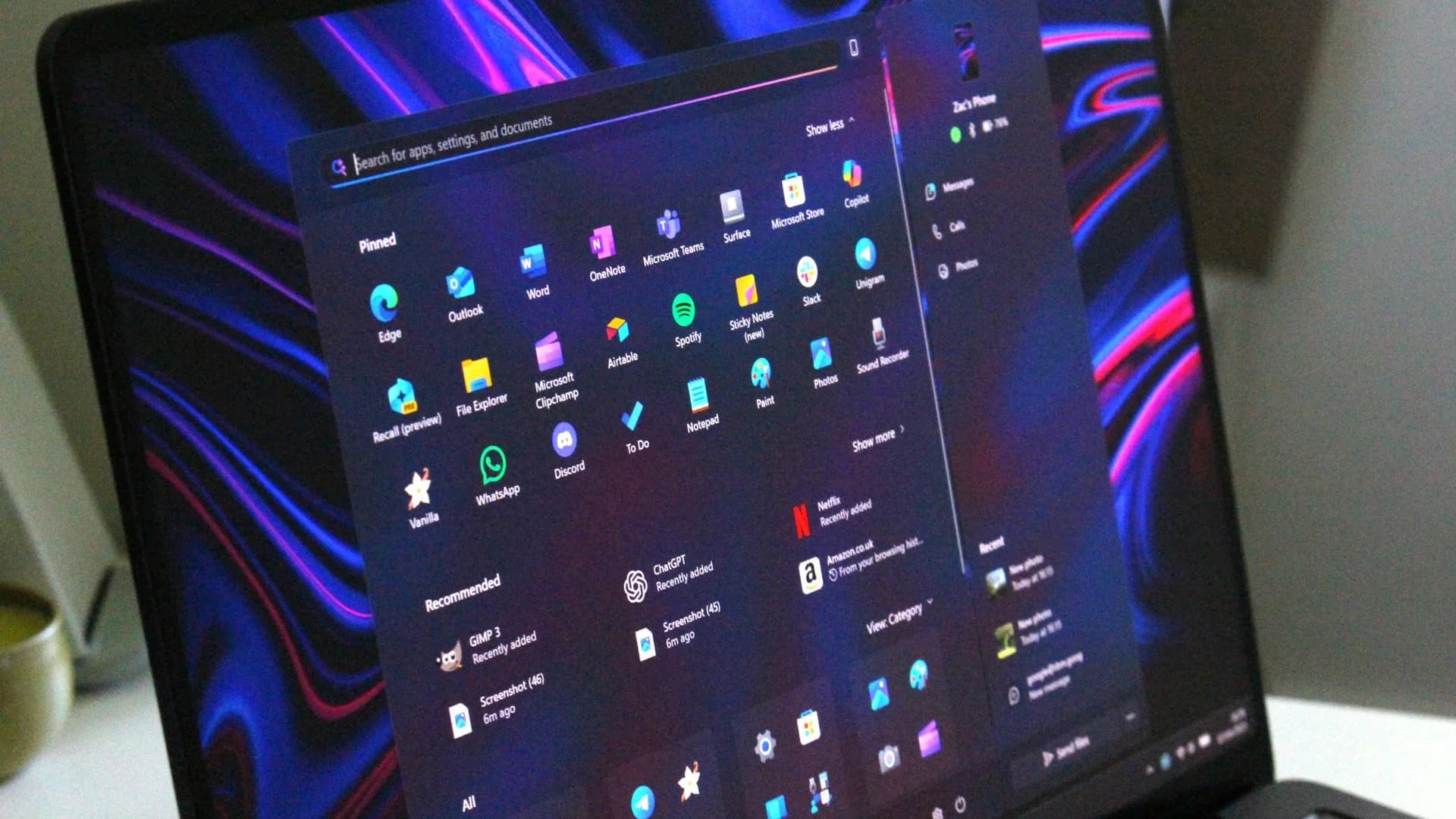
You can pin it to Start, but not directly: you must create it as a desktop folder first, then convert it into a proper shortcut via the New > Shortcut wizard, pasting the CLSID path manually. Once done, it behaves like any other pinned item. Draggable to taskbar, launchable from Quick Access, searchable in Start.
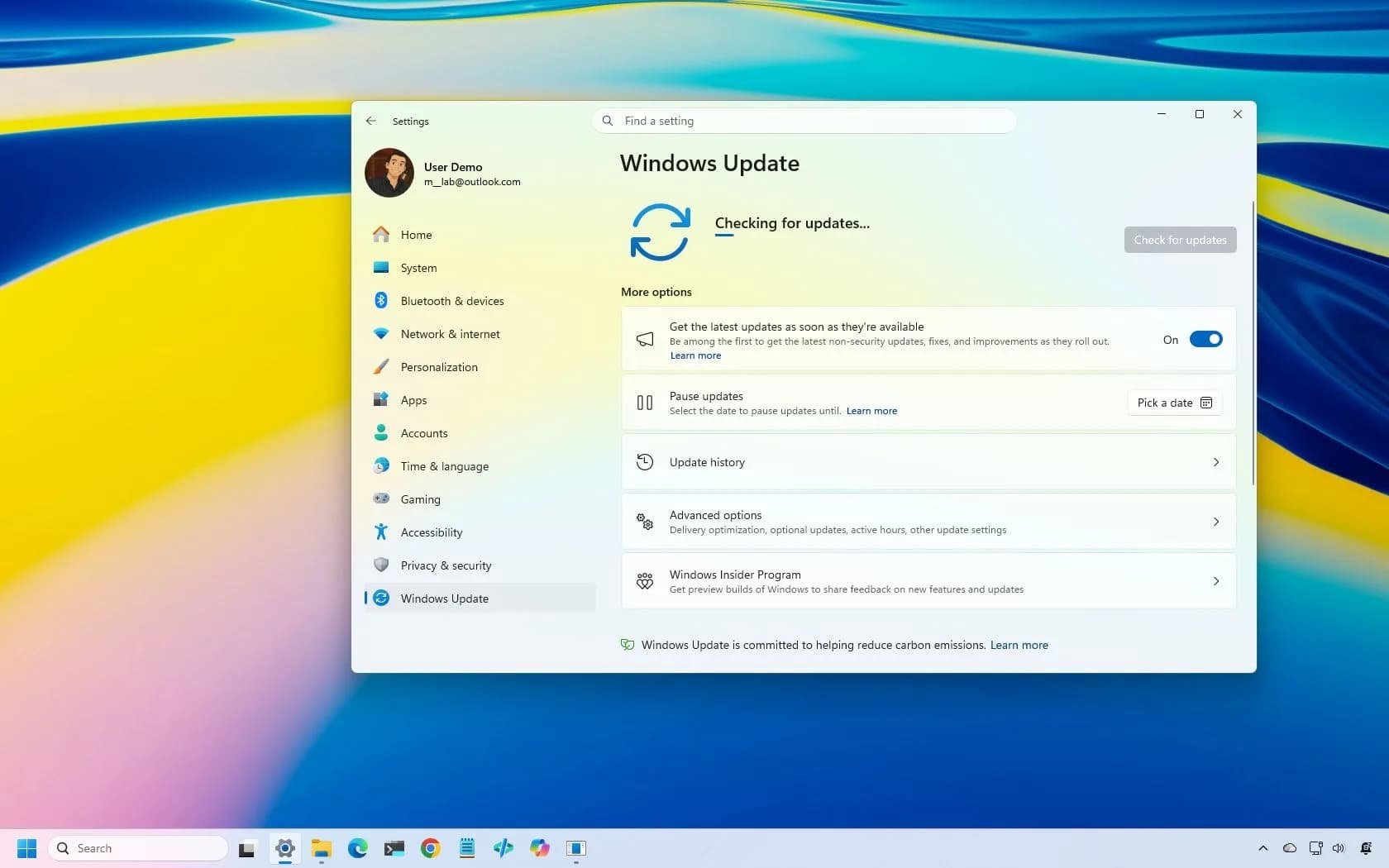
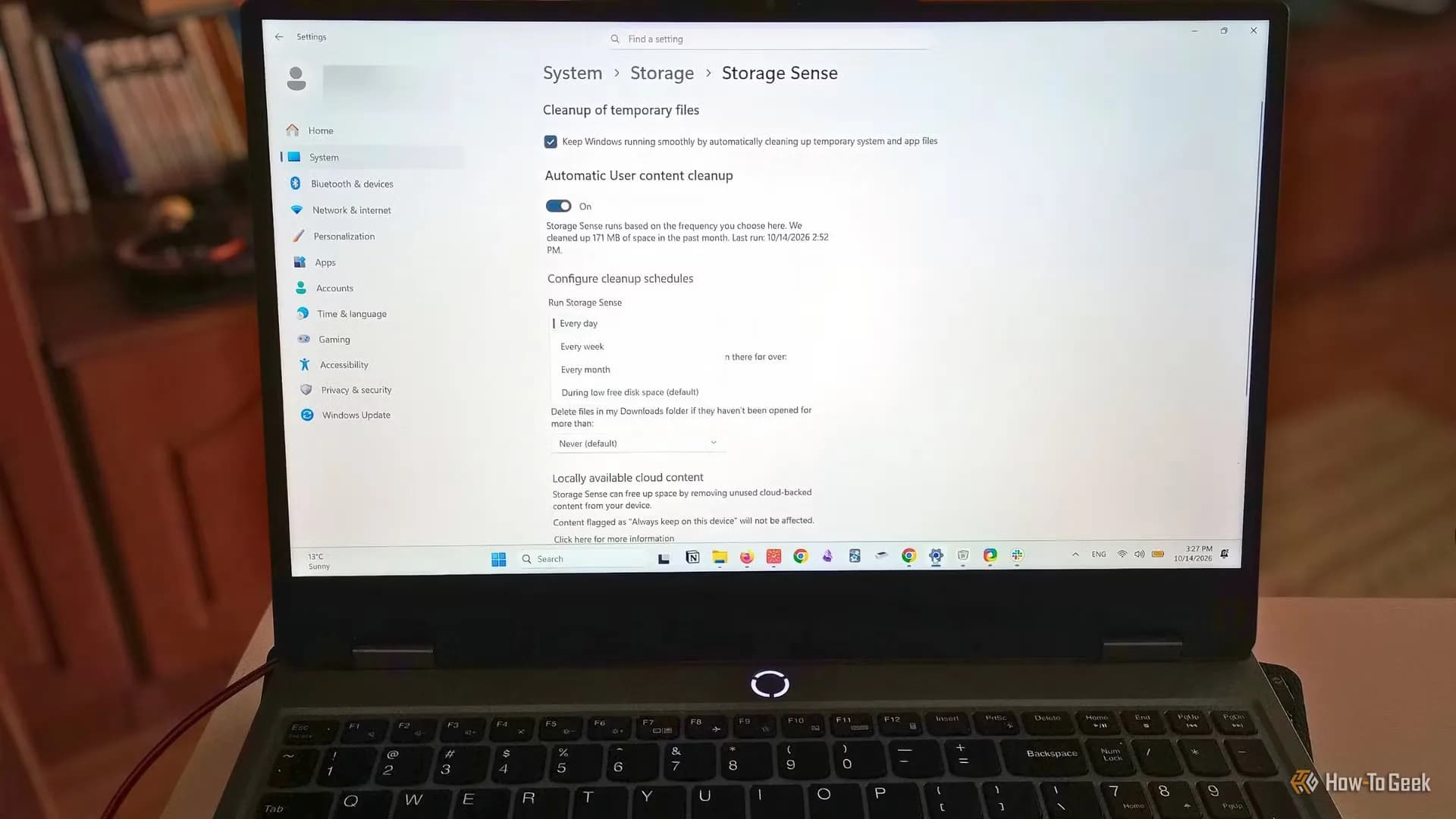
Microsoft has never documented or marketed God Mode. It doesn’t appear in Help, Settings, or even Windows Search unless you know the exact CLSID. That silence makes it a quiet win for users who’ve spent years fighting nested menus, inconsistent terminology, and settings that vanish between Settings and Control Panel.
It won’t replace Group Policy or Intune for enterprises, but for anyone toggling hardware power states, managing devices, or auditing privacy controls, it cuts navigation time from minutes to seconds. And yes: it works with Windows 11 Pro. And Windows 11 Home. And Windows 11 Enterprise.
No license tier blocks it. The only barrier is knowing it exists.
CDFiled by The Computing Desk
Laptops, desktops, processors, graphics cards and the operating systems that run on them.
More from this desk →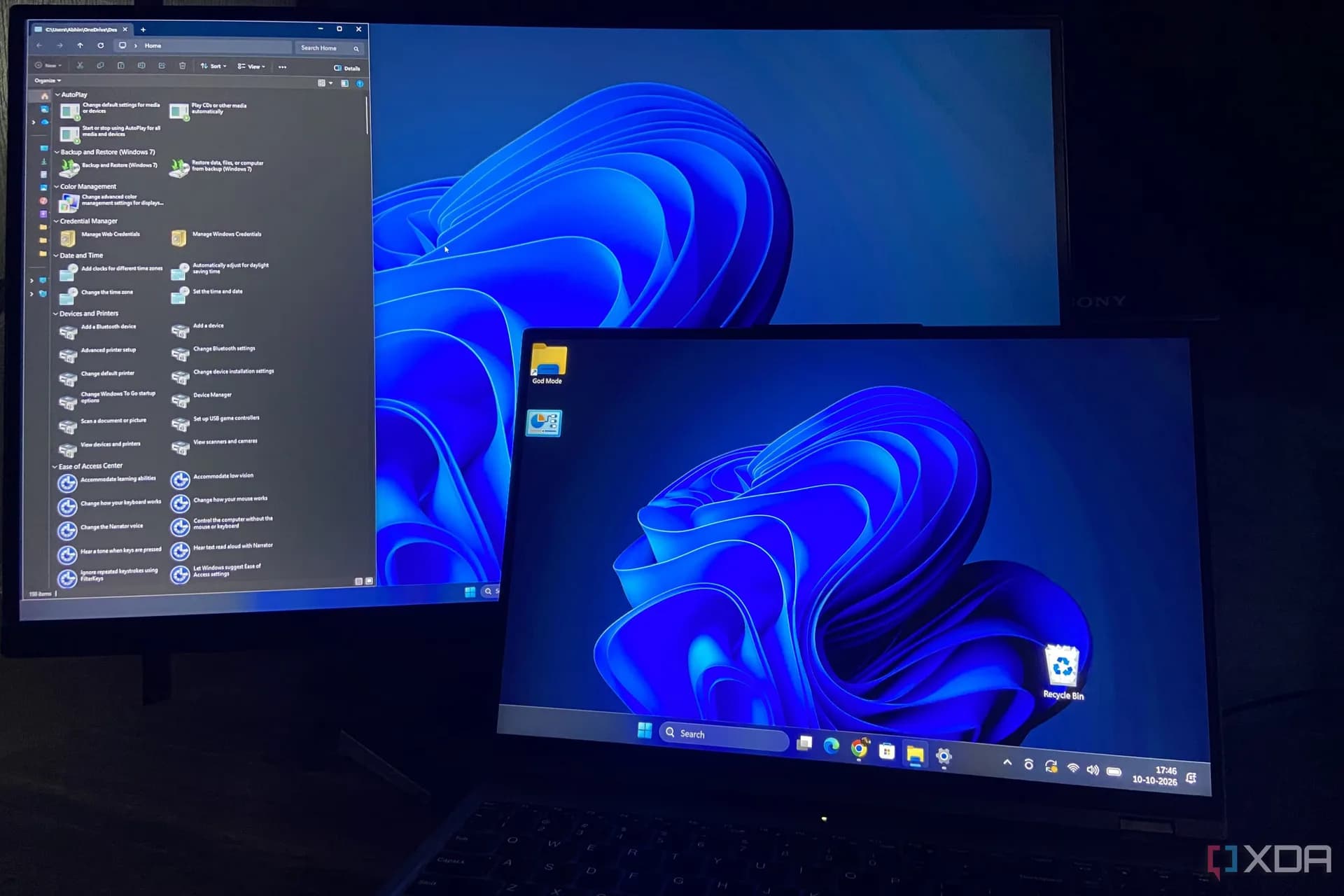
Be the first to comment
Join the argument. No password, just your email or a passkey.