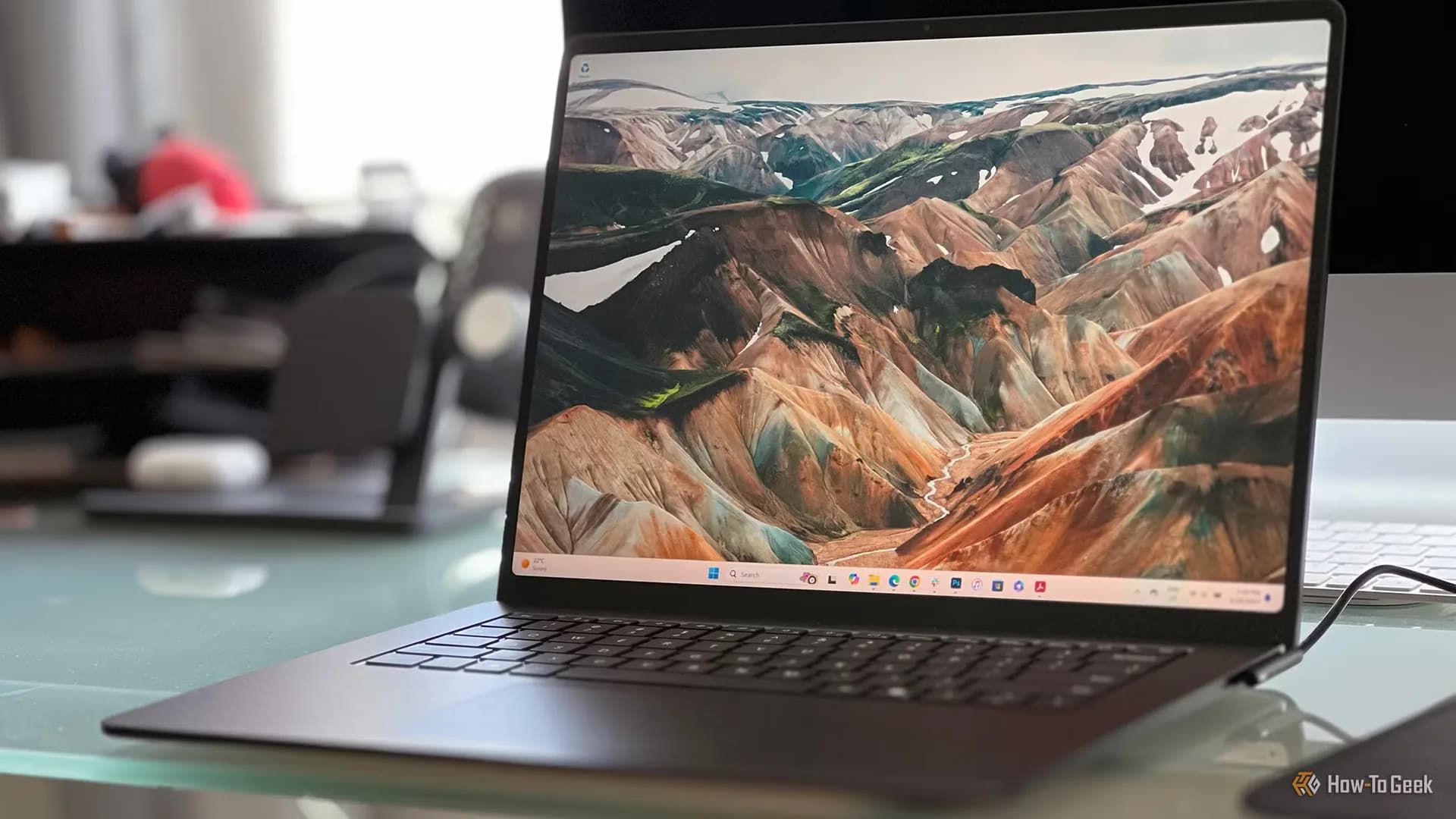
Windows 11 26H2 is rolling out with six long-demanded customizations — and the October 2026 Patch Tuesday update locks them in for all supported versions. No more waiting for preview builds. No more registry hacks. These are native, Settings-driven options now shipping to Windows 11 24H2 (until its end-of-support on Oct. 13), 25H2, and 26H2 machines globally. Microsoft has officially ended support for 24H2 as of October 13, meaning users still on that version must upgrade to 25H2 or 26H2 to keep receiving feature updates, including these changes. The rollout is gradual: Microsoft says some features may take weeks or months to appear, even after installing the latest update. But if you’re on 26H2, they’re already there. Or will be within days. You can download the 26H2 Feature Update directly from Microsoft’s website, though the company warns it may cause compatibility issues with certain firmware or drivers. So proceed with caution, not urgency. This isn’t a ‘Windows 11 download’ fix, it’s an evolution of what’s already installed. And it arrives just as users search most for ‘windows 11 26h2’, ‘windows 11 pro’, and ‘windows 11 key’. Not because they want to reinstall, but because they want control back. They got it. Here’s what changed, and what it actually means for how you use Windows every day. The Copilot key is no longer mandatory. It’s configurable. You can now assign it to Right Ctrl, Search, Copilot, or launch a specific app. Via Settings > Bluetooth & devices > Keyboard > Advanced keyboard settings. That’s new in this week’s Patch Tuesday. But note: if you map it to Right Ctrl, it won’t work for RCtrl + Win + R or RCtrl + Shift combos. Microsoft says use Left Ctrl for those. One-finger touchpad scrolling is live, and you pick which finger triggers it. Go to Settings > Bluetooth & devices > Touchpad > Scroll and zoom > Single-finger scrolling, then choose Disabled, Left side, or Right side. This works on 24H2, 25H2, and 26H2. But only if you’ve installed the October 13 update. The taskbar can finally move. Top, left, right, bottom, all options are back in Settings > Personalization > Taskbar > Taskbar behaviors. This landed in the September 2026 26H2 update. If it’s missing, your device may be blocked by hardware compatibility checks or hasn’t received the full rollout yet. Taskbar ungrouping is here. Instead of stacking all open windows under one icon, you can now see each window as a separate thumbnail. Plus toggle ‘Small’ size. Also part of the September 26H2 release. Start Menu is now editable, not just in content, but in structure. You can remove Recent files, suggested apps, tips, and even the entire app list. You can also hide your name and profile icon when sharing your screen. Useful for meetings or public laptops. All under Settings > Personalization > Start. Windows Search Bar finally lets you cut the noise. Web results are off by default now, and you can disable them entirely under Settings > Privacy and security > Search. You can also exclude folders from local indexing. Inline actions are rolling out too: type ‘set to dark mode’ and get a clickable button at the top of results. No Settings navigation required. Built on WinUI 3, this feature is appearing gradually across 26H2 devices. None of these are ‘apps’. They’re OS-level controls, baked into Windows 11 itself. And none require third-party tools, registry edits, or developer mode. Microsoft didn’t add them because they were technically hard. It added them because people complained. Loudly and for years. Now they’re real. And they’re shipping.
Windows 11 26H2: What’s new in the October 2026 update
Six Windows 11 26H2 customizations are live — including taskbar positioning, Copilot key remapping, and one-finger scroll — and they’re arriving via Patch Tuesday and the 26H2 Feature Update.
By Clock Speed
The Computing Desk · (3 hours ago)
Reported from
How this story was made
Written by the Hitechreports desk from the reporting credited above, with facts attributed to their original publishers. We do not test devices ourselves; anything about performance, battery life or cameras comes from the outlets that did. Prices are as reported at the time of writing. Editorial policy · Report an error
Filed by The Computing Desk
Laptops, desktops, processors, graphics cards and the operating systems that run on them.
More from this desk →Read next
More Laptops & PCs →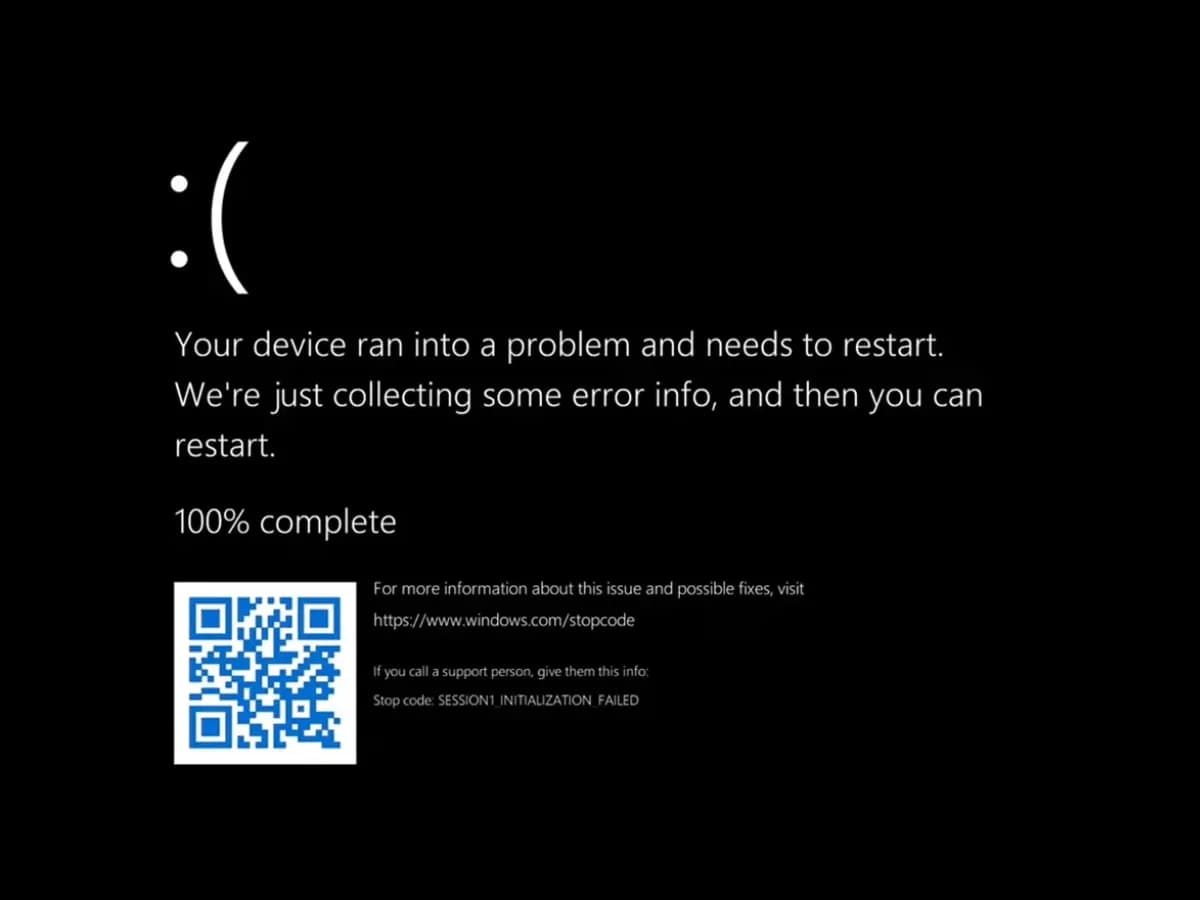
Microsoft Patches Windows 11 Explorer Crashes and Black Screen Sign-In Glitch
Microsoft has rolled out fixes for Windows 11 sign-in black screens and Explorer crashes caused by updates released since August, targeting virtual desktop deployments across current OS builds.
Microsoft Ends Windows 11 24H2 Support for Home and Pro
Microsoft has retired consumer support for Windows 11 24H2 Home and Pro, cutting off monthly security updates while phased rollouts for version 26H2 continue across eligible hardware.
Microsoft Trims Windows 11 Lock Screen Clutter and Patches Crashes
Microsoft rolled out Windows 11 Insider Preview Build 26220.9606 to the Beta Channel, slimming down lock screen widgets to prioritize weather while tackling a persistent media crash tied to msmpeg2ac3dec.dll.
Be the first to comment
Join the argument. No password, just your email or a passkey.